Timeline
The timeline can be set in two ways: using the Setup panel of dragging one of the vertical cursors in graphs, as shown in the following picture:
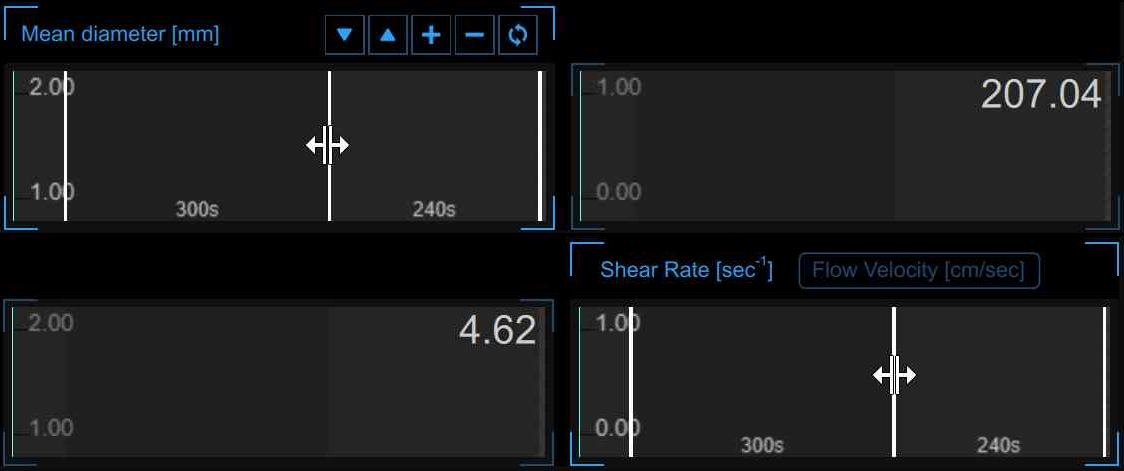
FMD Studio allows the users to manage the timeline in a flexible way able to meet their clinical and/or research needs. There are constraints on the timeline in terms of minimum and maximum allowed values for each interval (you can not set values outside the allowed range and, if the video modality is "Offline analysis", the sum of the intervals cannot be grater than the time length of the video file under examination). There are also suggested minimum values: if the user decides to ignore this advice, the analysis will be performed anyway but there will be a yellow alert icon ( ) next to the values that may not be reliable in that configuration. In the following table allowed and suggested values are shown:
|
Timeline constraints (in seconds) |
|||
|
|
Baseline |
Ischemia |
Vasodilation |
|
FMD |
5* - 180 |
0 - 420 |
5** - 1200 |
|
Vasodilation |
5* - 300 |
- |
5 - 1500 |
|
* we suggest a basal period of at least 20 sec. ** we suggest a vasodilation period of at least 120 sec. |
|||
If the user uploads a video clip (for offline analysis) with a lower duration than the minimum allowed values (it means 10 seconds; 5 for baseline and 5 for vasodilation) an error message will appear and only instantaneous values will be generated.

In this configuration user cannot set the timeline and characteristics parameters (e.g. FMD, FMDr, baseline diameter,...) will not be computed but only instantaneous values will be generated.
You can hover over the yellow icon (
) or the red one ( ) and an informative message about the warning or error situation will be displayed.