B-mode ROI
The B-mode Region of Interest (ROI) is the portion of the image where the diameter is calculated. The edges of the vessel obtained by the algorithm of edge detection are displayed within the ROI. The ROI can be moved and/or resized. Each time you change the position and/or size of the ROI, the contours of the vessel are re-initialized.
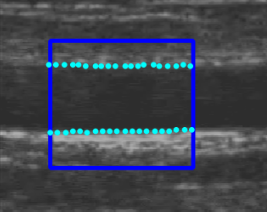
Drawing a new ROI:
You can manually draw the b-mode ROI with the desired size and position. If the image is already calibrated, you can also more quickly draw a b-mode ROI with the default sizes set in FMD Studio settings (a star in the Set ROI button will indicate that the default ROI can be drawn).
default ROI drawing
Click on the Set ROI

button in the Setup panel (the button remains active).
Click in the video window in the center of the brachial artery.
A ROI of the default ROI sizes will be automatically initialized.
manual drawing
Click on the Set B-Mode ROI
 button in the Setup panel (the button remains active).
Click inside the video window and drag until the b-mode ROI is complete (the size of the ROI is shown in the Setup panel).
When you release the mouse, the contours are initialized.
Resizing
the ROI:
Click on one of the sides or one of the corners of the b-mode ROI.
Drag to change the size of the the b-mode ROI.
Moving the ROI:
Click and hold inside the b-mode ROI.
Drag the b-mode ROI to the location of interest.
As an alternative, you can modify the size/position of the ROI by typing the value in the Setup panel.
Re-initializing the edge detection algorithm:
Click inside the b-mode ROI.