Login
When you run Cardiovascular Suite, you are asked to login with a Username and Password. Please enter your Username and Password, then click on the Login button to access the software.
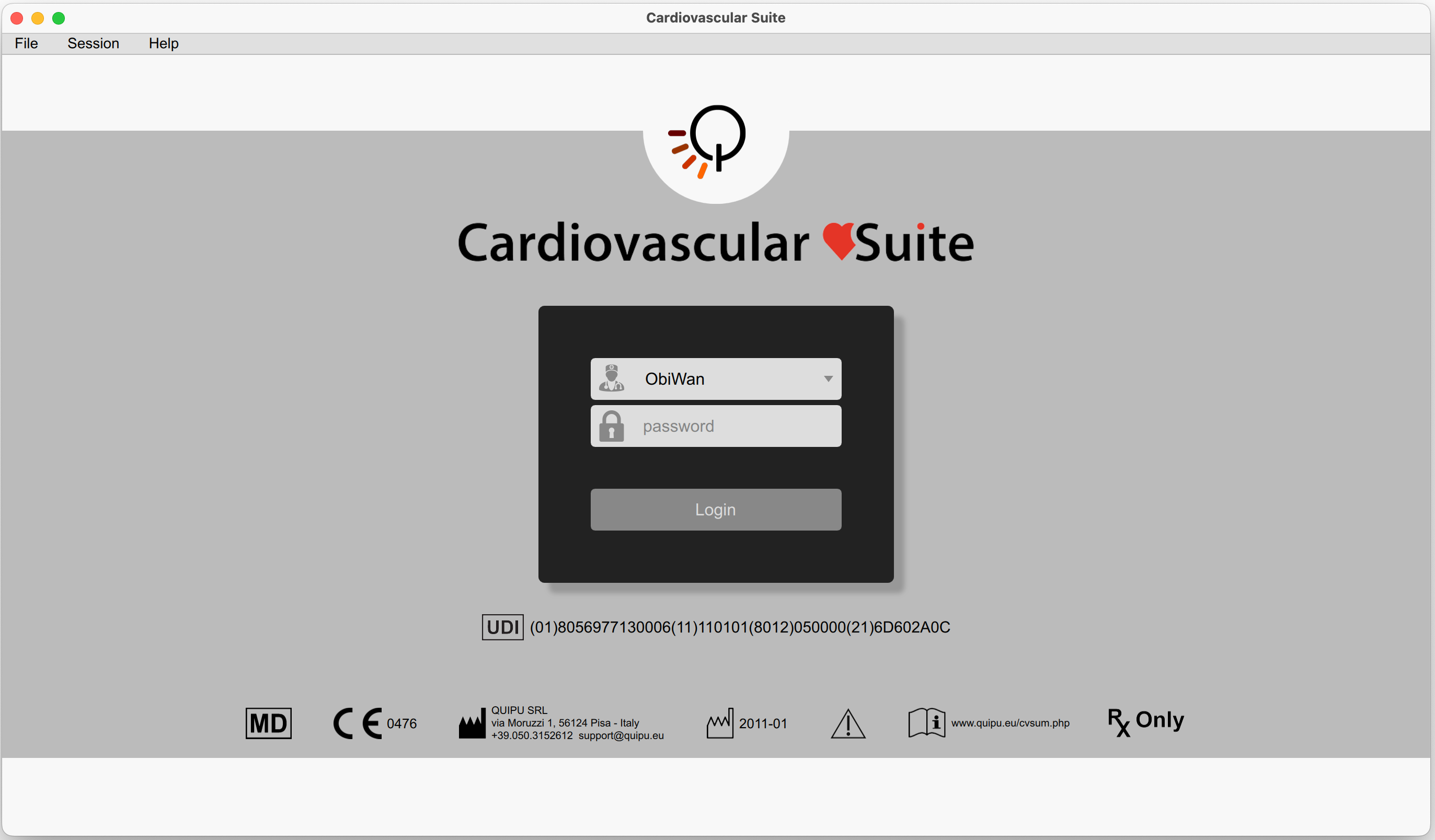
In the lower part of the Login window, the labeling of the device is shown.
In particular, on the right of the  symbol you can find the Unique Device Identifier of your software.
Creating the first operator
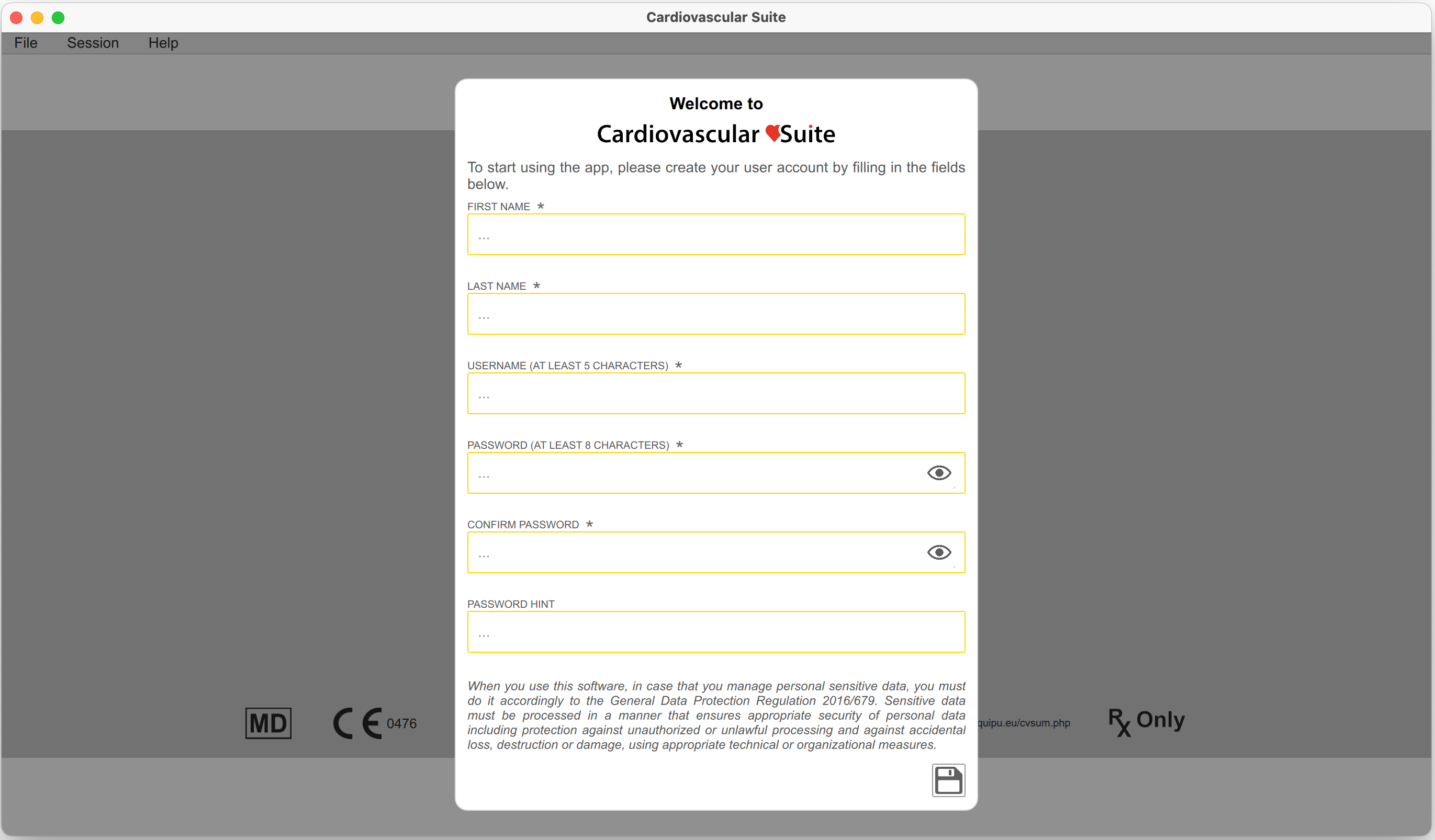
The first time you run Cardiovascular Suite, you are asked to create the first operator, which contains Username and Password to access the software.
Restoring password
If a user forgot the password, it can be reset by another operator that has the ADMIN class.
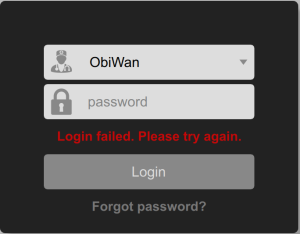
Otherwise, you can ask Quipu to help you to reset your password. Click "Forgot password?" under the Login button, and a message will show the instruction for restoring the password. You must send and email to support@quipu.eu with the 6 chars User Code that is displayed i the message. You will receive by email a 4 chars Reset Code. Then you can enter the Reset Code and the new password.
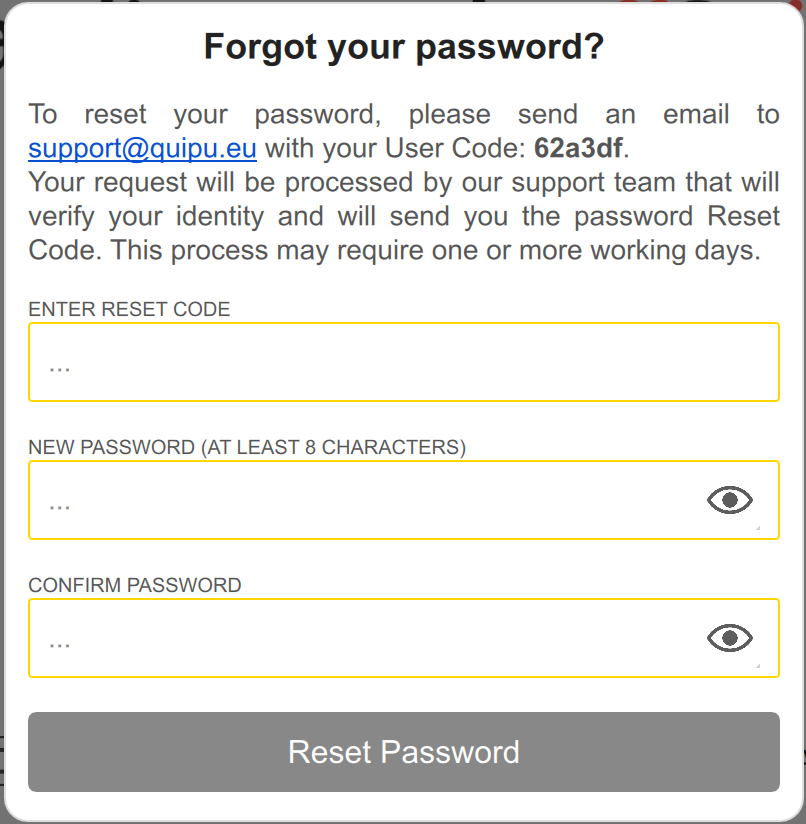
The request may be processed manually, so you may need up to one working day to receive the Reset Code.