Microsoft Windows computer
The software installation follows the usual procedure of installing software on Microsoft Windows.
For information or support please contact Quipu support team at support@quipu.eu .
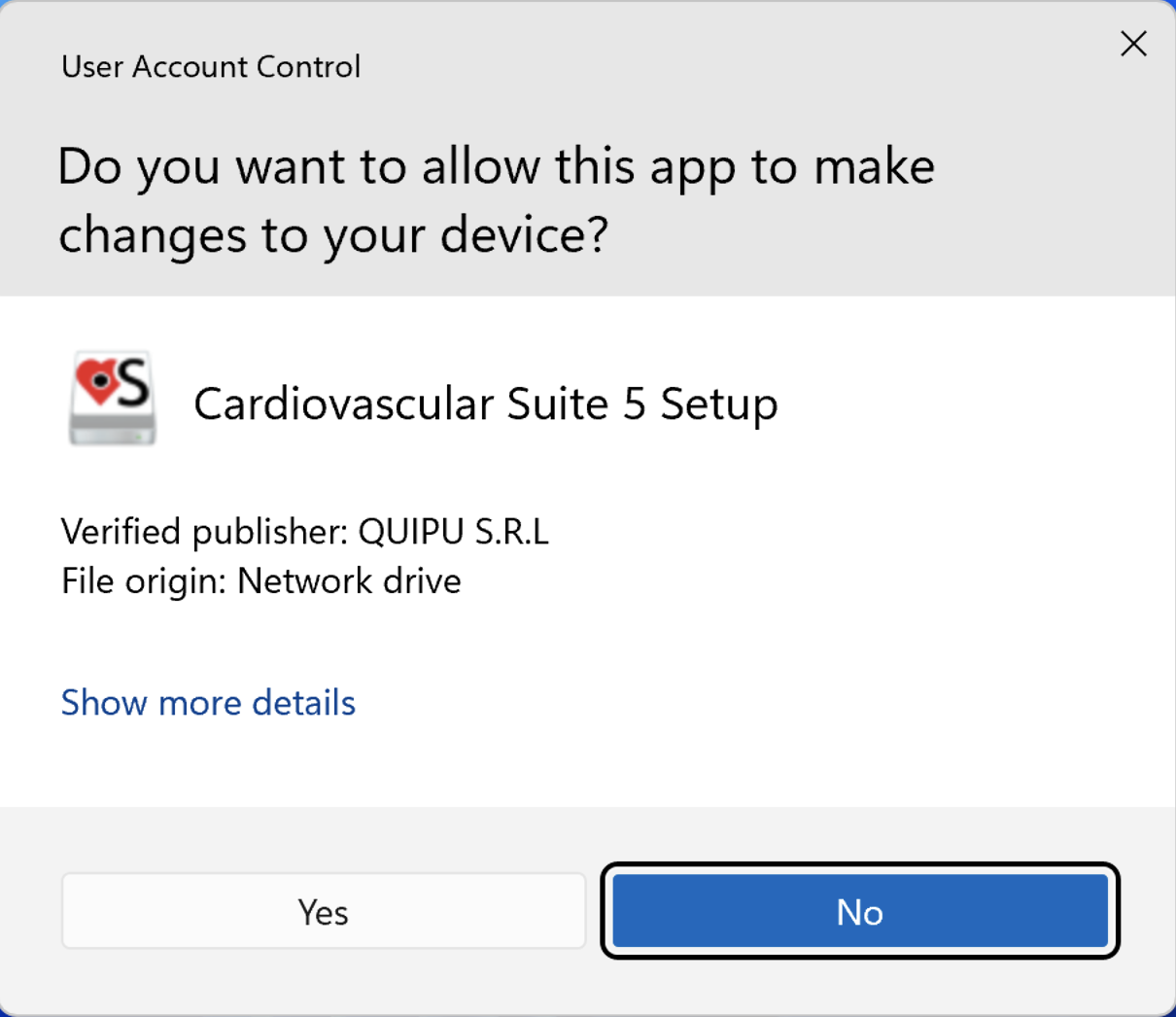
Confirm that the installer can make changes to your device.
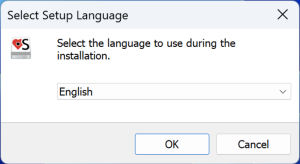
Select the language that will be used during the installation.
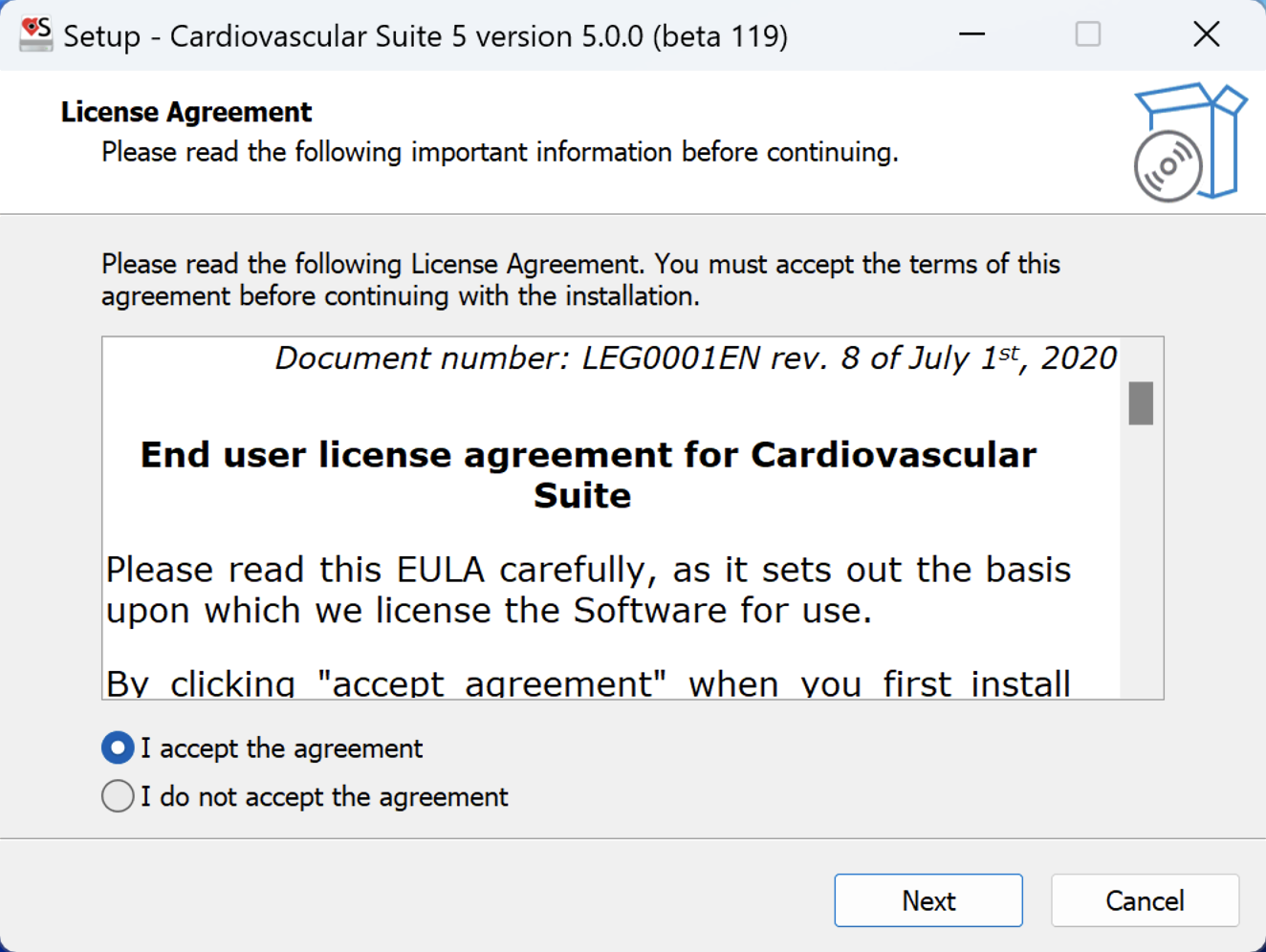
Read the License Agreement. If you don't accept the license agreement, please close the Cardiovascular Suite setup. If you accept, click the "Next" button to proceed.
Select whether you want to create a Desktop Icon. Click the "Next" button to proceed.

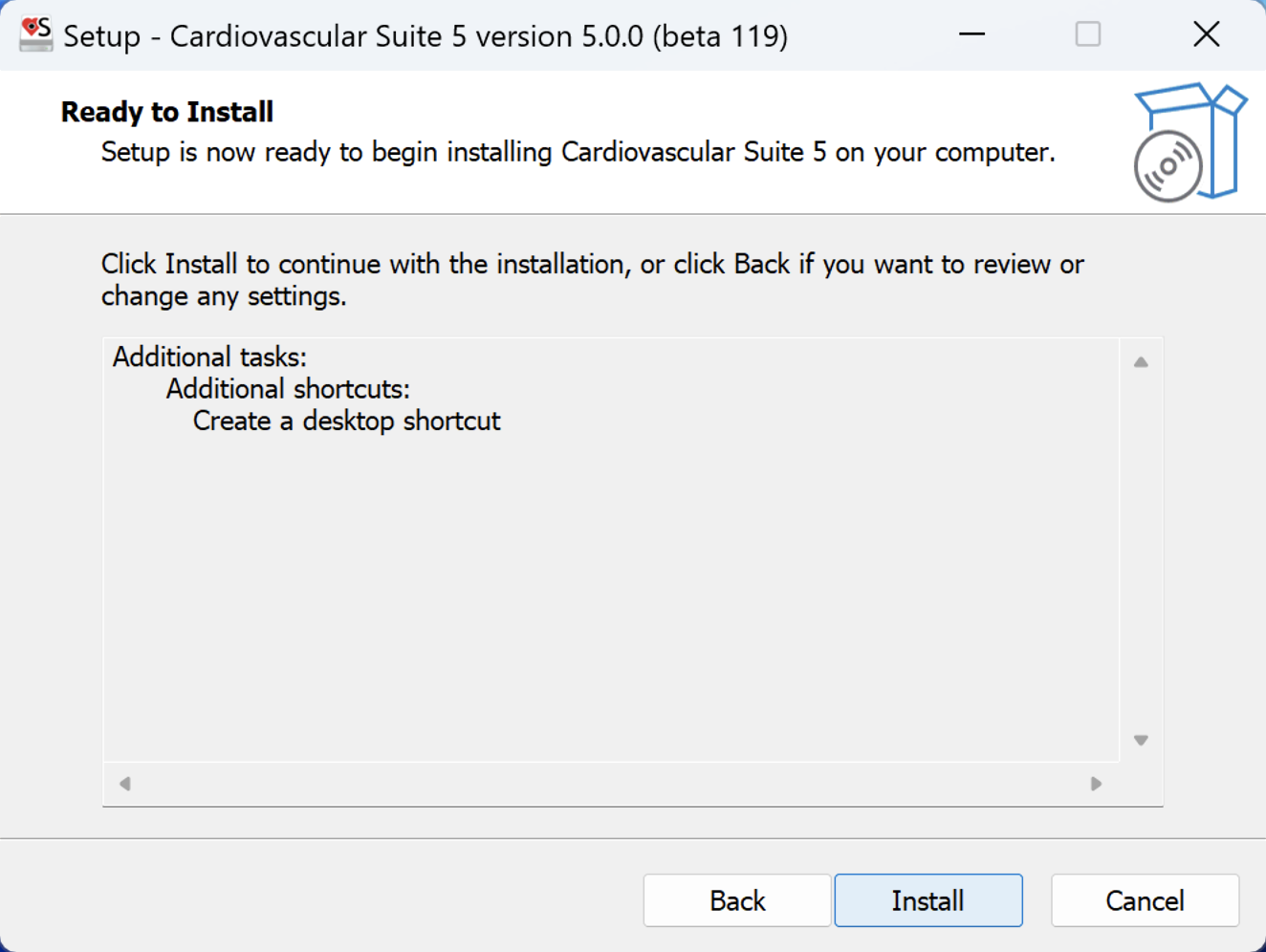
Review the installation setting. Click the "Install" button to start installation. Cardiovascular Suite will be installed.
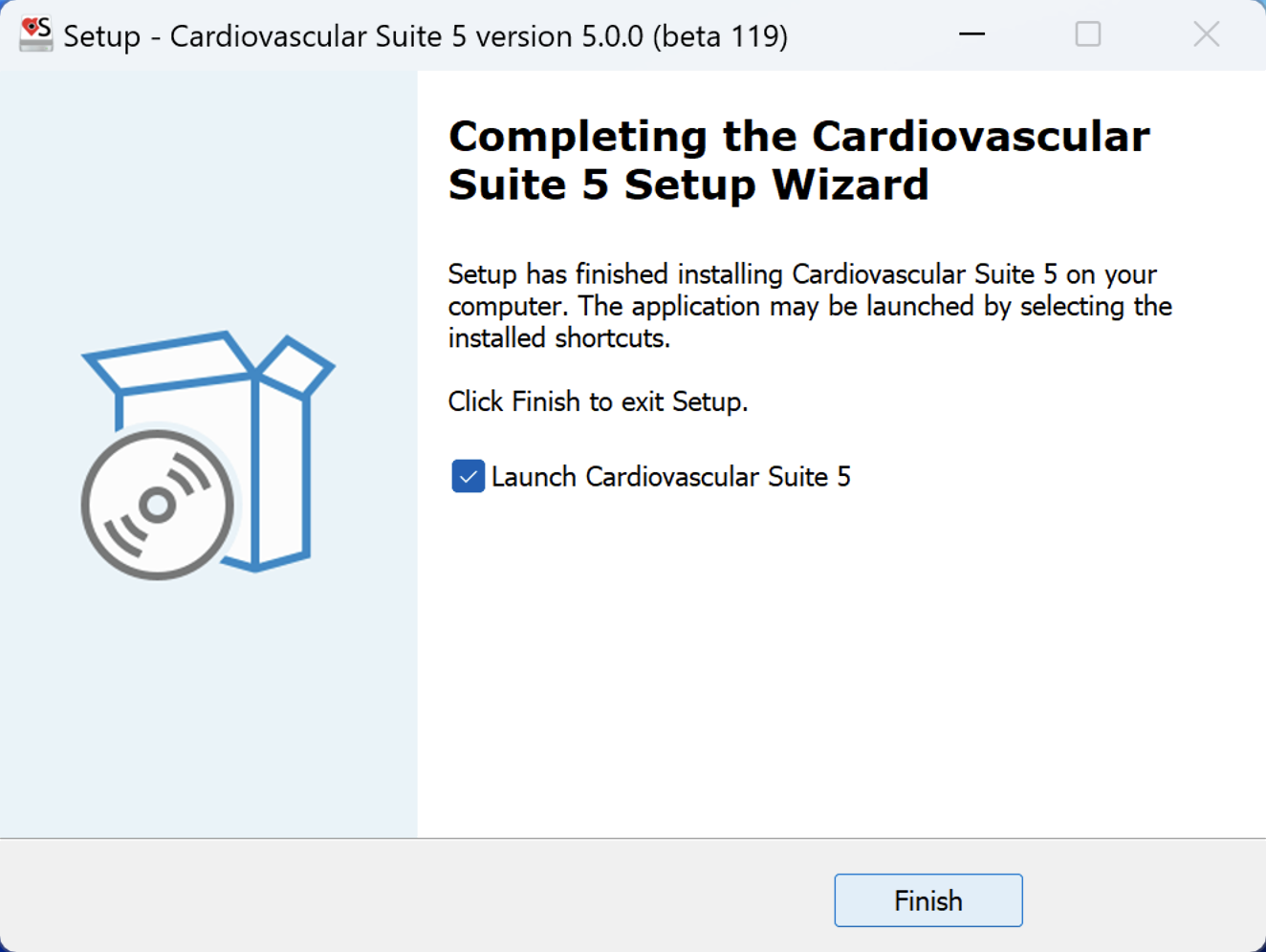
When the installation is completed, please click the "Finish" button.