Connecting your computer to the ultrasound system
In order to connect the computer with the ultrasound device and perform real-time analysis, the Magewell USB Capture AIO video capture device is required.
Using VGA/DVI/HDMI output
If your ultrasound machine has a VGA/DVI/HDMI output (see figure for reference), you can directly connect your ultrasound machine to the computer by using the Magewell USB Capture AIO video capture device. When possible, you should prefer one of these video outputs.
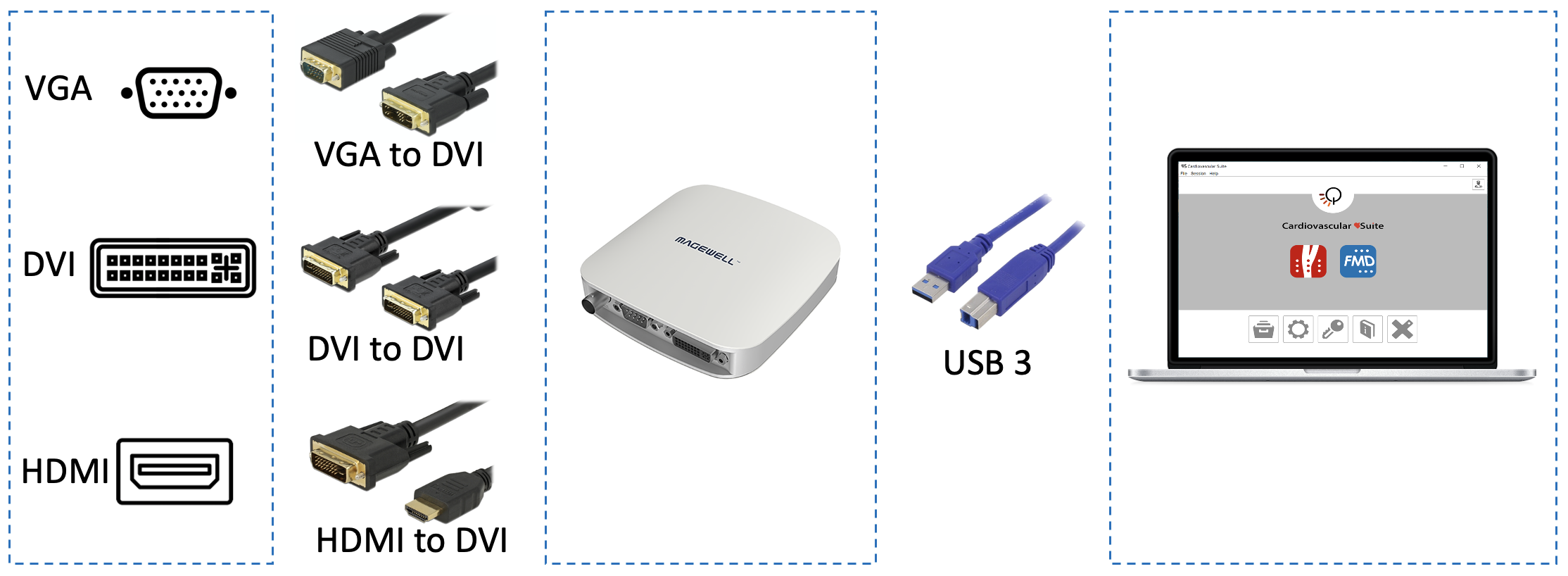 Detail of the connections based on the output video format:
VGA video output: use a VGA-to-DVI cable to connect your ultrasound machine to the Magewell USB Capture AIO; then use the USB 3.0 cable to connect the video capture device to your computer.
DVI video output: use a DVI cable to connect your machine to the Magewell USB Capture AIO; then use the USB 3.0 cable for connecting the video capture device to your computer.
HDMI video output: use an HDMI to DVI cable to connect your ultrasound machine to the Magewell USB Capture AIO; then use the USB 3.0 cable to connect the video capture device to your computer.
Using "legacy" video standard output
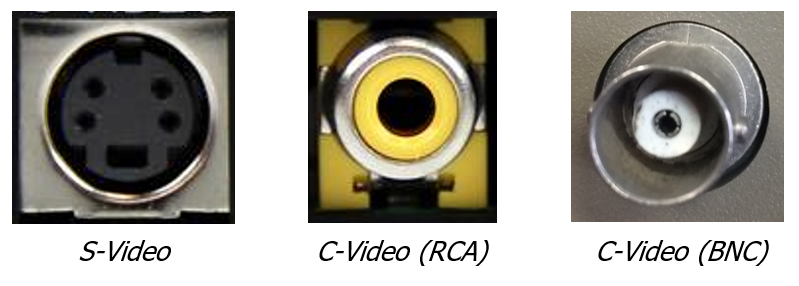 If your ultrasound machine has a "legacy" video standard (S-Video or C-Video) output (see figure for reference), you need a further adapter to connect your ultrasound machine to the computer by
using the Magewell USB Capture AIO video capture device.
If your ultrasound machine has a "legacy" video standard (S-Video or C-Video) output (see figure for reference), you need a further adapter to connect your ultrasound machine to the computer by
using the Magewell USB Capture AIO video capture device.
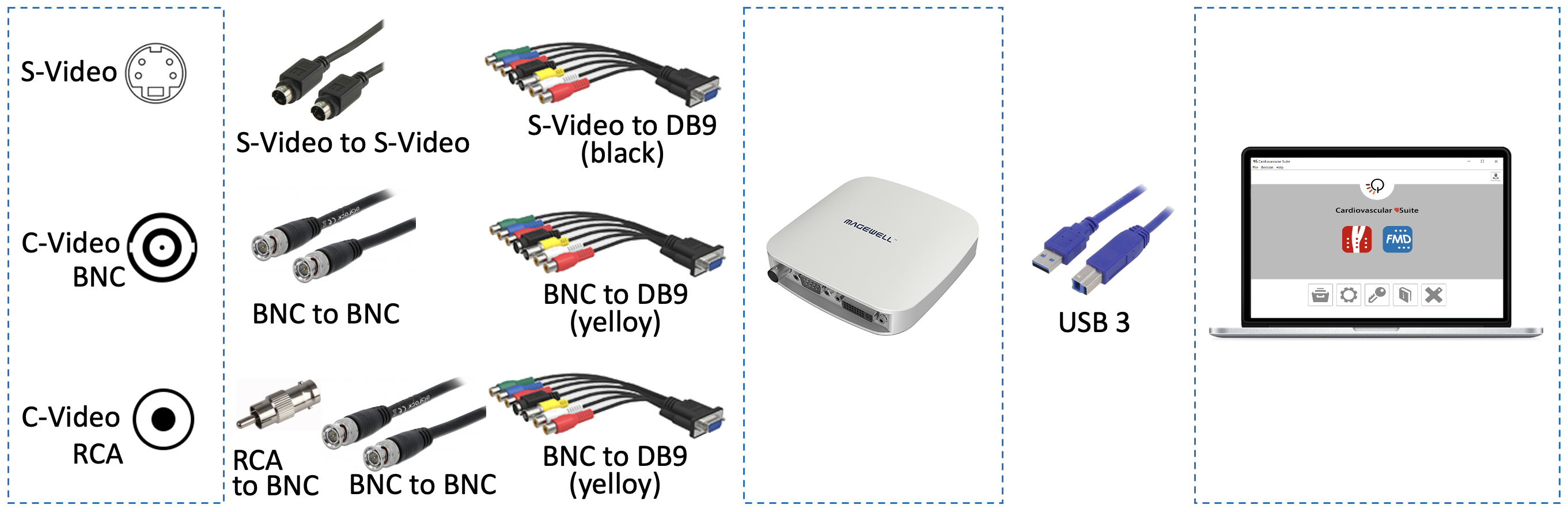 Detail of the connections based on the output video format:
S-Video output: use an S-Video cable and the DB9 adapter (black connector) to connect your ultrasound machine to the Magewell USB Capture AIO.
C-Video (RCA) output: use an RCA cable and the DB9 adapter (yellow connector) to connect your ultrasound machine to the Magewell USB Capture AIO.
C-Video (BNC) output: use a BNC-to-RCA adapter and then an RCA cable and the DB9 adapter (yellow connector) to connect your ultrasound machine to the Magewell USB Capture AIO.
Use the USB 3.0 cable to connect the video capture device to your computer. See more about Magewell USB Capture AIO.
NOTE: Please, verify with the ultrasound machine technician that the video output of your ultrasound machine is active.
For information on the availability and the standard of the video output, please contact the manufacturer of the ultrasound system.
For additional technical information on how to connect the computer to the ultrasound apparatus and on the compatible video standards, please contact us at support@quipu.eu
CAUTION: The B-mode window in the video must have a minimal resolution of 6 pixels/mm. If present, the size of the PWD window in the image must be at least 200x100 pixels.
CAUTION: The ultrasound scanner must be in accordance with the European Medical Device Regulation (EU) 2017/745 or cleared / registered / licensed by the appropriate regulatory authority.
CAUTION: If the video converter is used with an AC/DC power adapter, it must be a medical grade power adapter according to IEC 60601-1, current edition.