Calibrating the Doppler velocity image
The calibration of the Doppler velocity image must be done before starting a new examination because it is necessary to provide information about the size of the Doppler velocity waveform generated by ultrasound system. The calibration factor changes depending on the settings of your ultrasound machine. You should check the calibration at each new examination.
CAUTION: the lack of calibration can generate a software malfunction.
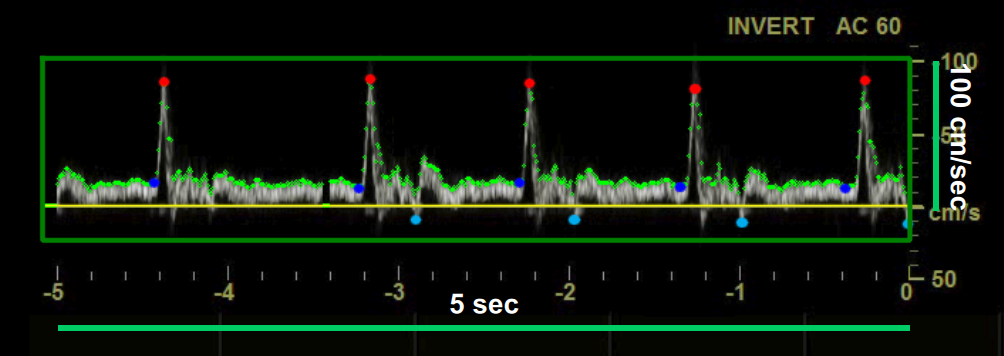
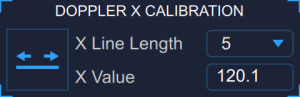
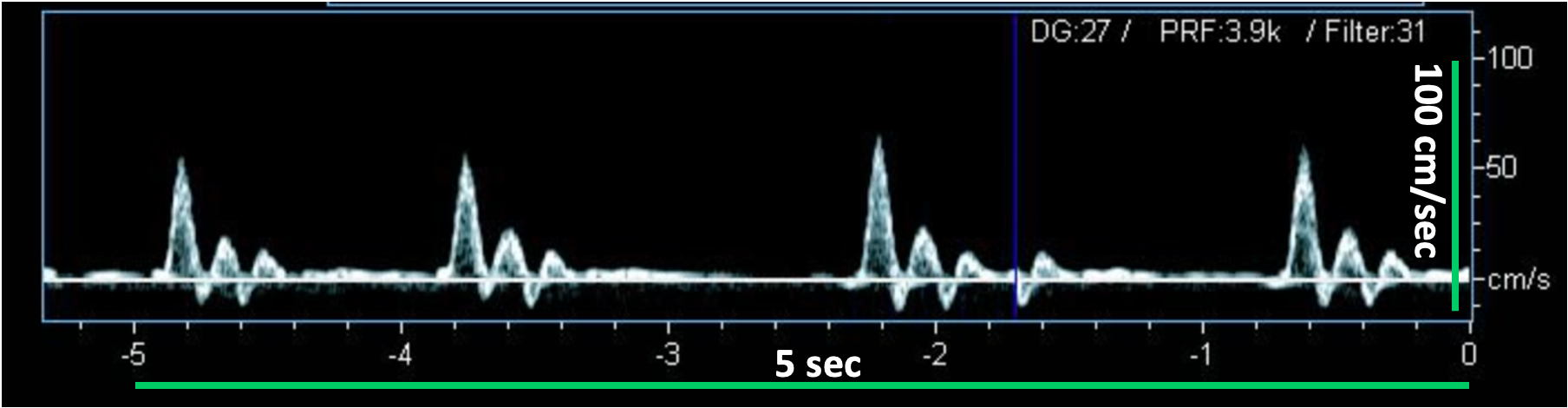
Locate, on the x axis of the Doppler velocity waveform, a known time length (5 secs in the example in figure).
In the Setup Panel, Doppler x Calibration, select the time length value in the "x-line length" drop-down menu.
In the Setup Panel, Doppler x Calibration, click the Trace the Line
 button.
Trace a line on the image corresponding to the known distance: click on one end and drag the mouse to the other extreme (press the Shift key on your keyboard if you want the line to be not horizontal).
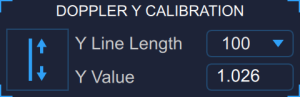
Locate, on the y axis of the Doppler velocity waveform, a known velocity value (100 cm/sec in the example in figure).
In the Setup Panel, Doppler y Calibration, select the velocity value in the "y-line length" drop-down menu.
In the Setup Panel, Doppler y Calibration, click the Trace the Line
 button (button remains active).
Trace a line on the image corresponding to the known distance: click on one end and drag the mouse to the other extreme (press the Shift key on your keyboard if you want the line to be not vertical).
For DICOM files, when present, the Doppler calibration is be obtained automatically by the file metadata (see Settings). You can anyhow modify the calibration values.
You can directly type the calibration values in the X value and Y value fields of the Doppler setup panel (if you already know the values).
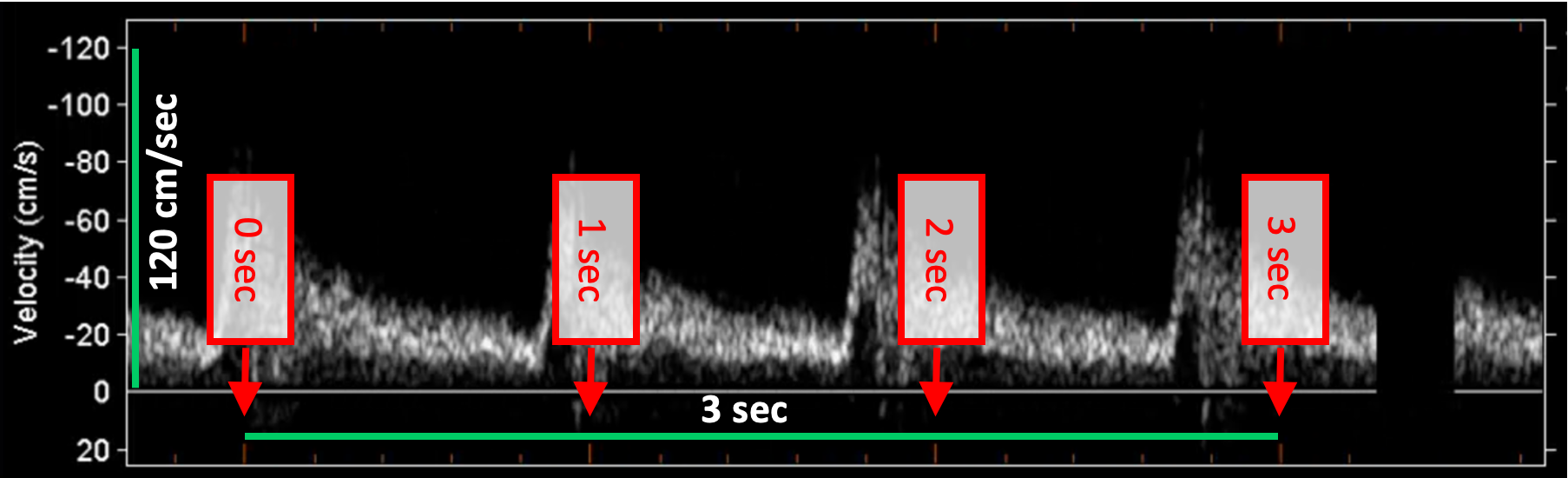
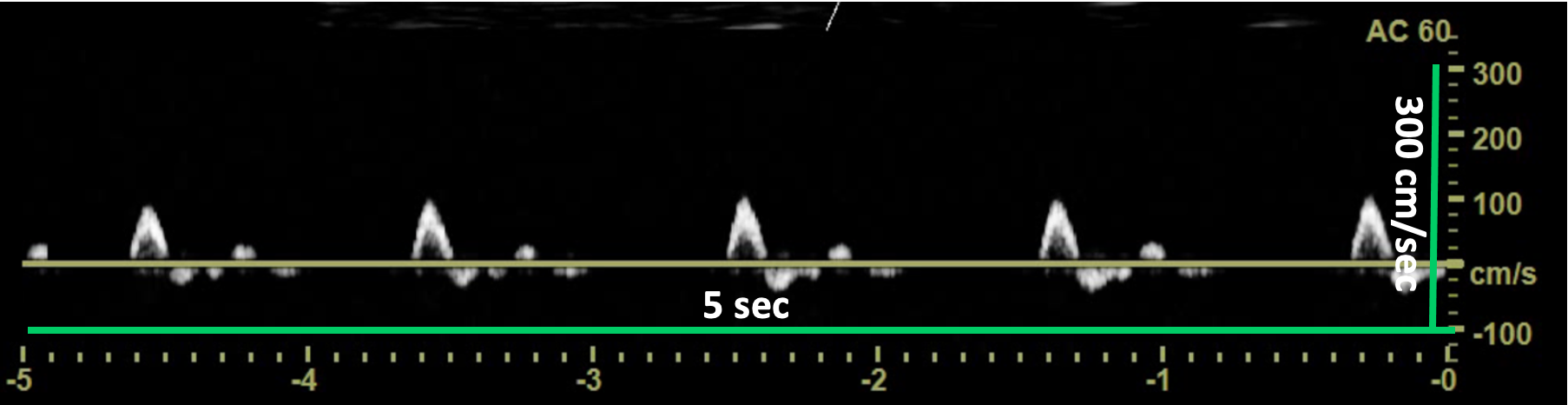
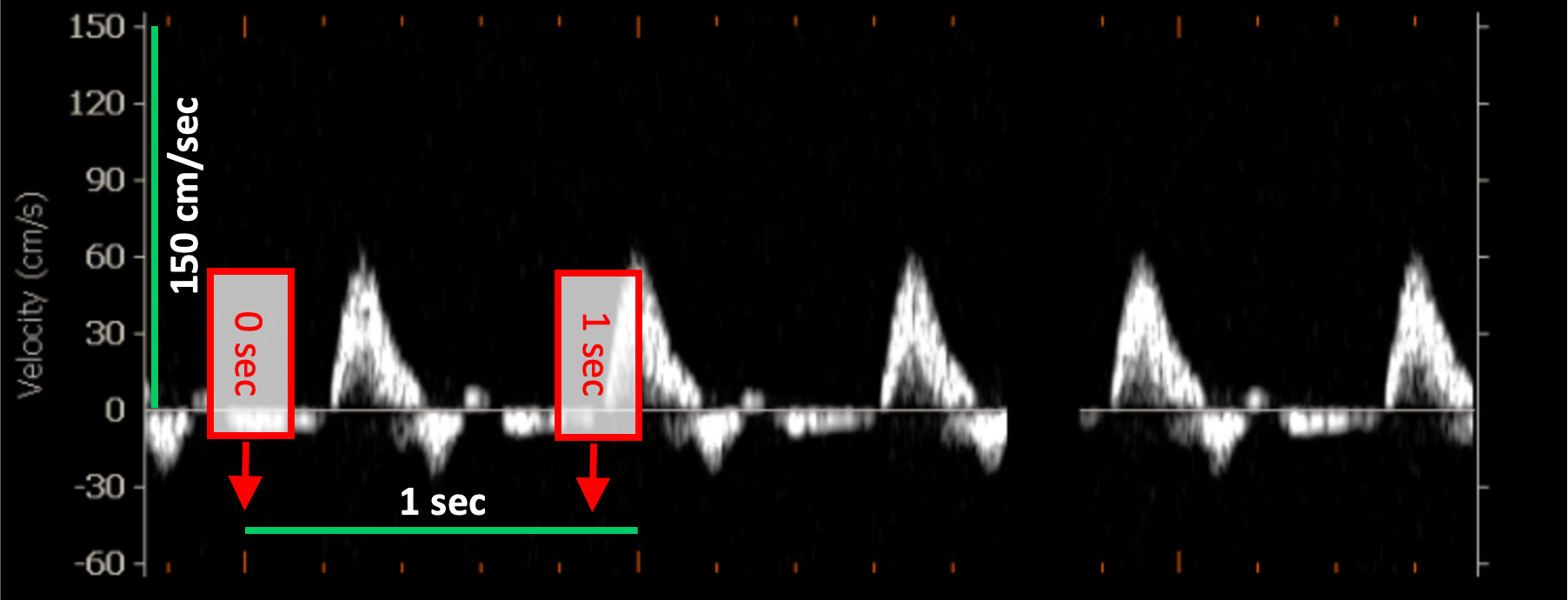
Doppler velocity calibration examples
The following images show examples of calibrations of the Doppler velocity image. Graphic items in red shows where you can find the information about the time scale in the ultrasound image.